PosterGeek Tip of the Week Tip 64- How does printing on fabric compare to printing on paper?

We’ve been printing on our foldable fabric for over three years now, and the acceptance has been terrific. Our customers are telling us that they love it! It’s convenient, saves them trouble at the airport, and looks great.

fabric research poster

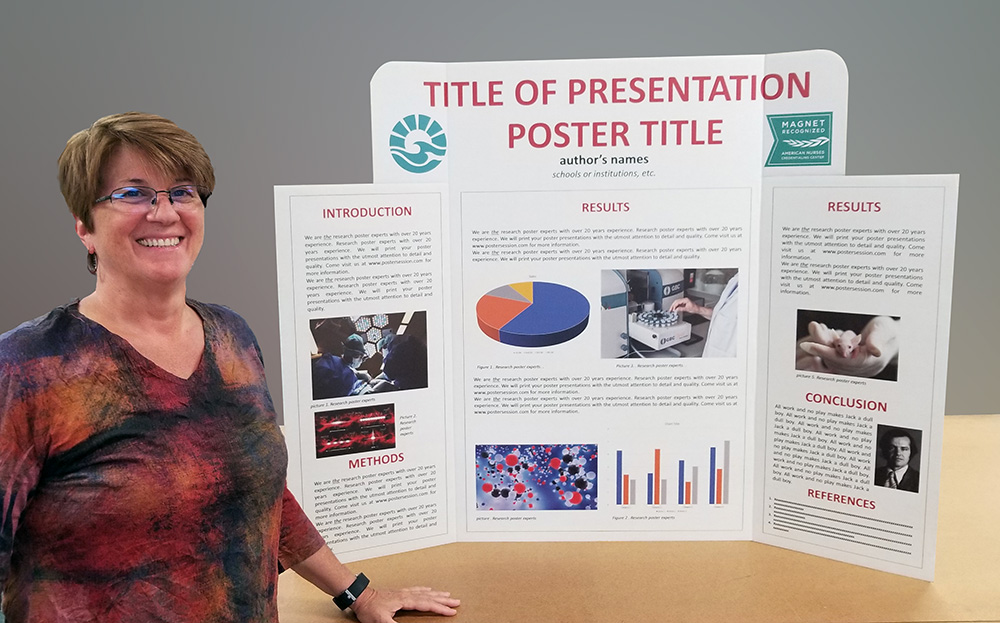
Fabric research poster example.

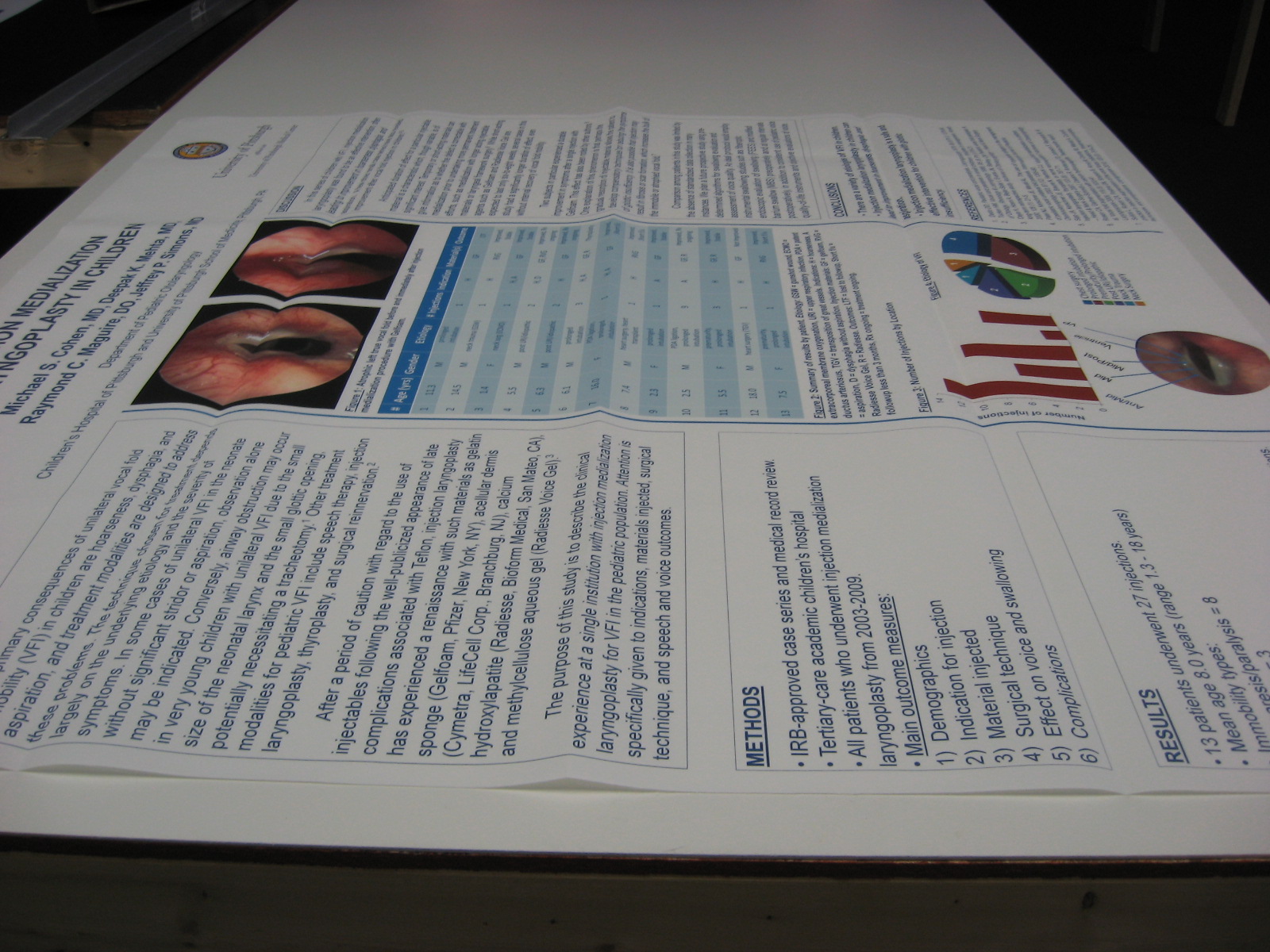
Our fabric prints just like paper- nice bright graphics, clear pictures, and sharp type. It even does a great job of printing fluorescent stains, which are hard to do well. We went through a lot of investigation to find the right combination of material and ink to give you a poster that looks as good as one printed on paper (and our paper went through the same process). To our knowledge, nobody else in the industry uses the same fabric that we do.

Our fabric comes to you folded and in the box that you can put in your luggage.


If you are still a bit nervous about purchasing a fabric poster you can do two things-

  1. Visit our testimonial page and see what other researchers have to say about our work.
  2. Ask us to send you a sample. We stand by the quality of our work because we take pride in what we do! (*If ordering a sample- please allow enough time before your conference. All samples are shipped by mail.)

If you need help with this feel free to give us a call (800) 590-7850.

For more design tips go here.
Like & Review us on Facebook.
Review us on Google.
Posted in Research Poster Design Tips | Tagged , , , , , , , , | Leave a comment

PosterGeek Tip of the Week Tip 63- How do I paste charts and graphs into my PowerPoint poster?

Did you know there is more than one way to paste things into your PowerPoint template? Most people don’t know this and as a result of this, they end up with problems. The method by which you paste things into PowerPoint can make a big difference in how they look.

When we contact researchers about the quality of their graphics, we ask for the original source file (Excel, PowerPoint or another file type) and the source files look great. The tricky part is taking these graphics and pasting them into PowerPoint.

For charts and graphs, you’ll often get better results by doing “paste special > enhanced metafile” instead of just plain old copy and paste.

pasting graphics into powerpoint

Pasting a chart into PowerPoint on the PC.

Here is how to paste graphics into PowerPoint on a PC
In the newer versions of PowerPoint (2007-2013)
Step 1: After copying your graphic (Ctl + C)- Click on the Home tab and you will see a button to the left that says,”Paste”.
Step 2: Click on the down arrow underneath the paste button and you will have a few more paste options.
Step 3: Here is where you will click on “Paste Enhanced Metafile”.

*Pasting as an enhanced Metafile turns the information in to artwork that you can’t edit, but the trade-off is a nice looking graphic. These graphics can be re-sized easily. If you paste things into PowerPoint and the text seems to be going crazy on you, this is usually the fix.

pasting graphics on the mac

Pasting a chart into PowerPoint on the Mac.

Here is how to paste graphics into PowerPoint on a MAC
In the newer versions of PowerPoint (2008-2011)
Step 1: After copying your graphic (Command “the apple icon” + C)- Go to your Poster template and click on the Edit tab.
Step 2: Click on the Paste Special button.
Step 3: A new window will open up and you will want to select the PDF option.

If you are having trouble and need some help with this, please feel free to give us a call (800) 590-7850.

For more design tips go here.
Like & Review us on Facebook.
Review us on Google.
Posted in Research Poster Design Tips | Tagged , , , , , , | Leave a comment

PosterGeek Tip of the Week Tip 62- How to add guides in PowerPoint on a Macintosh computer.

PowerPoint provides you with several tools to help you when designing your poster. The hardest part is trying to figure out where those tools are located!
Aligning images in PowerPoint can be a bit tricky. Which is why we always recommend using guides if you are concerned about the alignment of your graphics and boxes.

powerpoint help on mac

Here’s how to add guides on a Mac.

Here’s how to add guides in your PowerPoint file on a Mac:
Step 1: Click on the View tab
Step 2: Click on the Guides button
Step 3: Click on the Dynamic & Static Guides buttons (if they aren’t already checked)

We recommend de-selecting Snap to Grid and Snap to Shape, which may be pre-selected. This makes it easier to move objects in small increments. You will be able to move these guides around your page and place them on the edge of a box to make sure other boxes are all aligned.

Want to make more guidelines?
To create more guidelines, all you have to do is hold down the Alt button on your keyboard, press down with your mouse, drag and release. Instead of moving the guideline, a new one is created.

If you need help with this feel free to give us a call (800) 590-7850.

For more design tips go here.
Like & Review us on Facebook.
Review us on Google.
Posted in Research Poster Design Tips | Tagged , , , , , , | Leave a comment

PosterGeek Tip of the Week Tip 61- How do I find PowerPoint’s Master Page on a Macintosh computer?

The master page allows you to create a background design that lies behind the working page. When you are moving objects and text boxes around on your page, everything on the master page stays put. That’s great for having a common set of artwork behind the pages in your PowerPoint presentation, and we see many universities and companies using the master page as a common background design for their posters. 

powerpoint help

Here’s how to find the MasterPage on a Mac.

Here’s how to find the Master Page in MAC PowerPoint 2008 & 2011:
Step 1: Click on the View tab
Step 2: Click on the Master button
Step 3: Click on the Slide Master button

Now you will be able to make all the changes you would like. Don’t forget to close the Master Page before you start designing your poster!

If you need help with this feel free to give us a call (800) 590-7850.

For more design tips go here.
Like & Review us on Facebook.
Review us on Google.
Posted in Research Poster Design Tips | Tagged , , , | Leave a comment

PosterGeek Tip of the Week Tip 60- Adjusting the Line Spacing in PowerPoint

Here’s a tip for PowerPoint users that everyone can benefit from. Sometimes you want to adjust the space between line of text just a little, like when your paragraph is just a little bit too big. You can change what’s called line spacing in 1% increments, and it will often give you the space you need without any discernible change in the look of your paragraph.

Start on the Home tab

adjusting the line height in powerpoint

Here’s how to adjust the line spacing in PowerPoint.

Step 1: First, Click on the text box you would like to adjust.
Step 2: Then, click on the Paragraph arrow button in the lower Right corner of this section. Hint: This arrow is really small!
Step 3: A new window titled ” Paragraph” will appear in the middle of your screen.
Step 4: Click on the Line Spacing drop down menu and Change this option to “Multiple”
Step 5: The PowerPoint default is 100%, and you can usually make it 90 or 95 % without your text looking too tight.

This is one of our favorite tricks for getting things to fit on a poster!

If you need help with this feel free to give us a call (800) 590-7850.

For more design tips go here.
Like & Review us on Facebook.
Review us on Google.
Posted in Research Poster Design Tips | Tagged , , , , , | Leave a comment

PosterGeek Tip of the Week Tip 59- PowerPoint Indents and Tabs Explained.

Indents and Tabs are great tools for creating accurately spaced indents, numbering, and bullet points in PowerPoint.

Learning how to use Tabs will save you

  • Time
  • Frustration
  • and Gray hairs!

What Are “Tabs”?
Indents and Tabs are “stops” on the ruler that help you evenly indent your text to a specific spot each time hit the tab button. When you press the Tab button on your keyboard, PowerPoint moves your text over using a default increment.

The beauty behind customizing your own Tabs is the freedom to adjust your Indents and Bulleted Lists with ease. Once you set your Tabs (for each text box) you can tab over and everything will line up without spending more time trying to make sure your text is aligned. If you’ve ever tried to line text up by simply hitting the space bar, you’ll know that it’s hard to get everything perfectly lined up. Tabs will do this for you.

Finding the ruler in PowerPoint

Here’s how to find the ruler.

In order to use the tabs, you will need to make your ruler visible.
Step 1: Click on View
Step 2: Click on Ruler

Now that you can see your Ruler, you will be able to adjust the tabs of each text box. Note: that each text box has it’s own set of tabs. If you want to create several text boxes with the same tabs, set the tabs on a box and then duplicate it by pressing Ctl + D on your keyboard.

How Do I Adjust The Tabs?
Step 1: Click in (or create a new) text box. *You should see these little notches appear on your ruler- These are the tabs you will be using.
Step 2: Paste your text into your box or start typing in your information.
Step 3: Select your text and you can start customizing your tabs.

tab functions

Here’s what these Tabs do.

What Tab Does What?
We labeled each tab, in the image on the right. Here is what each tab controls.

1. Top Tab- This controls how far the First line of each paragraph can be indented. *You will need to adjust this for each paragraph.

2. Bottom Tab (top)- This controls the indentation of all the lines after the First line of each paragraph. *You will need to adjust this for each paragraph.

3. Bottom Tab (bottom)- This controls the indentation of the entire paragraph (all lines in a paragraph).

4. Secondary Tabs- This controls a new indentation and a paragraph recognizes this before the smaller (Tertiary tabs) which use PowerPoint’s default settings. *You will need to adjust this for each paragraph.

5. Tertiary Tabs- This controls the smaller increments if you would like to tab over a bit. For the most part the PowerPoint default will work. These are adjustable as well. *You will need to adjust this for each paragraph if needed.

If you need help with this feel free to give us a call (800) 590-7850 and one of our professional graphic designers can assist you.

For more information on Indent and Tab settings go to Microsoft.com

For more design tips go here.
Like & Review us on Facebook.
Review us on Google.
Posted in Research Poster Design Tips | Tagged , , , , , , | Leave a comment

PosterGeek Tip of the Week Tip 58- Gloss Laminate vs Matte Laminate, Which is Better?

The answer is…… It’s a tie, They are both good. Both will protect your poster -especially if you hang it in your lab- and keep it looking fresh for a long time.

Gloss Laminate

Gloss laminate vs Matte laminate

Examples of our lamination

The Glossy Laminate has the “wet look” of a glossy photo. It makes the colors pop. If, however, if it is hung above your eyes, you can have trouble with glare from the lights above. Usually that’s not a problem at the conference, since the display boards are low, but it can be when you display it back in your lab.

Matte Laminate

The Matte Laminate is fairly comparable in color however, it has the added bonus of muting the glare. Looking at a Matte laminated poster, it is often hard to tell it from a matte paper poster.

If pressed to choose one over the other, I choose the Matte Laminate option because I want my poster to be easy to read in situations where glare could be a problem. Visit our site to see some research poster examples.

Which laminate is your favorite? Comment and let us know!

For more design tips go here.
Like & Review us on Facebook.
Review us on Google.
Posted in Research Poster Design Tips | Tagged , , , , , , , | Leave a comment